|

1. I get a ' ' ' is not a valid integer' error when
printing/running a report.
2. How do I ensure the security of my
Skylog data?
3. What types of Windows Mobile powered
devices will Skylog work on?
4. Why can't I backup to a CD or DVD drive?
5. Can I use Skylog with a Pocket PC
running the Windows Mobile OS?
6. I do multiple flights a day, can I just
put in one entry per day?
7. Will Skylog Version 5 (or earlier) work
on Windows Vista or later?
8. Will skylog work on Apple Mac computers?
9. How do I transfer Skylog to a new
computer?
10. Why have I gained a couple of flight
records after upgrading to V6?
11.
Upgrading your operating system to Windows 7.
12.
Skylog Mobile Apps' Conduit configuration requirements.
13. I cannot sync my mobile device with my PC.
14. How
can I improve my Skylog mobile app's Wi-Fi syncing reliability?
15. What
is the current status of Skylog's mobile applications?
16.
Skylog Android app Compatibility and USB cable Syncing requirements
17. How do I sync mobile app data with the main Skylog Pro database?
18. Skylog Android app Compatibility and Wi-Fi Syncing requirements.
19. How can I keep my Skylog Airport Records database up-to-date?
20. Why doesn't ADB syncing work with my Android 5 (or later) device?
21. What are the Anti-Virus Firewall requirements for syncing Skylog with Mobile Devices using Wi-Fi?
22. Why am I taken to the login/register page of an unknown organisation when I use the www.skylog.co.uk link to access the Skylog website?
23. Syncing Fails on Apple Mobile Devices Following Installation of IOS 14.
1. I get a ' ' ' is not a
valid integer' error when printing/running a report.
If you have Skylog V5, update your
program to the latest V5 version using the appropriate free update and then select Main Menu|File|Repair
Database. If you have Skylog V4, download file CheckData.exe to
your Skylog folder and run it from that location.
Please note that Skylog Versions 5 and earlier are obsolescent and are no longer supported. It is highly recommended that customers using Version 5 or earlier upgrade to Version 6.
Top
2. How do I ensure the
security of my Skylog data?
To prevent data loss in the event of a computer problem requiring a hard disk reformat or a new hard disk, it is essential that you back up your Skylog data and configuration files to a number of removable (external) storage media eg, CD-RW, external hard disk, USB FlashDrive etc or to an online Cloud Backup Service at regular intervals. If you haven't backed up Skylog's data files within 30 days of the date of the first additions/changes you made after the previous backup, you will be prompted to do so when you exit Skylog. It is also highly recommended that you take regular printouts of, at least, your flight and Simulator records. Remember, you are responsible for the security of your data.
It is recommended also that
backups are alternated to more than one backup folder eg, I:\skylog1,
I:\skylog2 etc if using Skylog V5 or earlier. Skylog V6 (and later) backups are automatically assigned to folder names containing the current date eg, I:\Skylog\2018-12-15. It is also recommended that backups are alternated to more than one removable disk/drive.
In addition, to prevent data loss in the
rare event of a computer problem necessitating a hard disk reformat or replacement
occurring together with a corrupted Backup file or unreadable Backup
media, it is essential that:
- If using Skylog V5 or earlier, you copy the data and configuration
files (.dbf and .ini files only) in the Skylog folder (usually
c:\Program Files\skylgpro (Pro) or c:\Program Files (x86)\skylog (Standard))
to an external safe location eg, Zip disk, external hard drive,
CD-RW, USB Flash Drive etc, at regular intervals, or
- You take
regular 'snapshots' (images) of the drive(s) containing your Skylog
folder and other valuable data (documents, address books etc) to
external media using a drive imaging tool such as Symantec Norton
Ghost, or Acronis True Image, or
- You make regular backups of the Skylog folder and folders containing
other valuable data to external media using a backup tool such as
NovaStor NovaBACKUP or Acronis True Image, or
- You use an online backup service such as Dropbox, OneDrive etc to backup
your Skylog or Skylog Pro Data folders (see below) to a secure cloud server.
Important:
If using Windows Vista and later and Skylog V5 or earlier,
please make sure you backup Data folder:
c:\Users\<YourUserName>\AppData\Local\VirtualStore\Program
Files\skylog (Std) or skylgpro (Pro)
as it will (if UAC is enabled) contain
your working data files - see FAQ 7 below.
If using Skylog V6 or
later, please make sure you backup the following Data folder:
Windows 98, 98SE:
C:\Windows\Local settings\Application Data\Skylog (Std) or Skylog Pro
(Pro).
Windows ME: C:\Windows\Application
Data\Skylog (Std) or Skylog Pro (Pro).
Windows 2000, XP Home & Pro:
C:\Documents and Settings\<YourUserName>\Local Settings\Application
Data\Skylog (Std) or Skylog Pro (Pro).
Windows Vista or later: C:\Users\<YourUserName>\AppData\Local\Skylog
(Std) or Skylog Pro (Pro).
To ascertain the location of your V6 (or later) data
folder, select Main Menu->Help->About; your data folder is shown
on the bottom panel of the About form.
Top
3. What types of Windows
Mobile powered devices will Skylog work on?
We regret that our Windows Mobile apps are now obsolescent and, hence, are no longer supported.
See also FAQ15 below.
Top
4. Why can't I backup to a
CD or DVD drive?
Skylog backups work with CD/DVD
Re-Writable drives (CD±RW/DVD±RW/DVD-RAM drives) if a proper third
party packet writing device driver is installed and configured with
your drive. The driver should make the CD/DVD behave like a hard disk.
Packet writing software can write only to CD/DVDs if the disks are
formatted using the Universal Data Format (UDF) file system. Roxio Easy
Media Creator/Easy CD Creator or TradeBit InstantBurn are examples of
software packages that work with various CD/DVD Re-Writable drives and
make them look like hard disks. One simple test to see if Skylog will
work with a CD/DVD Re-Writable drive is to see if you can copy files
from your hard disk to the drive using Windows Explorer. If Windows
Explorer can copy files to the drive, Skylog can also backup to the
drive.
Microsoft Window XP includes a "lite"
version of Roxio's Easy CD Creator but it does NOT make the CD/DVD look
like a hard disk. You will need to install packet writing software such
as Roxio Easy Media Creator/Easy CD Creator for Windows XP.
Drag-to-Disc/Direct CD is included with Easy Media Creator/Easy CD
Creator for Windows XP and allows your CD/DVD Re-Writable drive to
appear just like any other drive volume. In other words, your CD/DVD
Re-Writable drive handles files just like a hard disk or floppy disk.
Once you have Drag-to-Disc/Direct CD (or similar package) installed on
your system, you can drag and drop files to the CD/DVD Re-Writable
drive as well as use Skylog to back up your files to the CD/DVD
Re-Writable drives.
Top
5. Can I use Skylog with a
Pocket PC running the Windows Mobile OS?
We regret that our Windows Mobile apps are now obsolescent and, hence, are no longer supported.
See also FAQ15 below.
Top
6. I do multiple flights a
day, can I just put in one entry per day?
From JAR-FCL 1.080 (c) Logging of time:
(vi) If the holder of a licence
carries out a number of flights upon the same day returning on each
occasion to the same place of departure and the interval between
successive flights does not exceed thirty minutes, such series of
flights are to be recorded as a single entry.
Hence, flights over 30 mins apart must be logged separately.
Top
7. Will Skylog Version 5 or earlier work on
Windows Vista or later?
Microsoft Windows Vista was broadly
available as a stand-alone product or pre-installed on new PCs on January
30, 2007. Testing with Skylog V5 on the Vista Business edition
showed that Skylog V5.06 and earlier were not fully compatible with the
new OS in the following areas:
- Skylog's current Help system - based
on WinHelp - does not work as MS have withdrawn support for this Help
system in Vista. The WinHelp Help system has been replaced by the HTML
system in the Skylog V5.10 Vista update.
- If Skylog is installed in Skylog's
default installation folder (c:\program files\skylog or c:\program
files\skylgpro for Pro) on Vista, and assuming that UAC (User Account
Control) was ON when Skylog was installed, Skylog's working data files
will actually be in folder:
c:\Users\<UserName>\AppData\Local\VirtualStore\Program
Files\skylog (Std) or skylgpro ( Pro)
If UAC is switched OFF subsequently,
Skylog's working data folder changes to the default c:\program files
\skylog (or skylgpro) folder (containing empty/old data files), and
recent data will appear to be lost. If UAC is switched ON again, Skylog
will use the Program Files' VirtualStore folder again and all your data
will (miraculously!) re-appear. If you change your UAC setting after
using Skylog in Vista, you will need to restore your current data from
a current backup (taken BEFORE the UAC setting is changed) to ensure
your working data is re-installed in the correct folder.
However, if Skylog is installed on
Windows XP (or earlier) or is installed on Vista in a folder other than
'c:\program files', the working data files will remain in the Skylog
folder and will not be affected by the UAC setting. In Version 6, the
working data files will be installed (on Vista) in the
C:\Users\<UserName>\AppData\Local\skylog (Std) or skylgpro ( Pro)
folder and, hence, will not be affected by the UAC setting.
- Checkboxes, radiobuttons and certain
buttons disappear if the keyboard Alt key is pressed. This problem is
fixed in the Version 5.11 update.
- There are minor appearance issues
eg, the Skylog Desktop icons do not display correctly in all Desktop
display options. These issues will be fully addressed in a Version 6
upgrade.
Since Skylog Version 5 is obsolescent and is no longer supported, it is highly recommended that customers using Version 5 or earlier upgrade to Version 6 - which is fully compatible with Windows Vista and later versions.
Top
8. Will Skylog work on
Apple Mac computers?
Skylog is designed for use only with
computers running Windows operating systems and we do not promote or
support it for use with Macs. However, we are aware of some users with
older macs running optional extra Windows emulator software are using
Skylog successfully. In addition, the latest generation Macs running
Mac OS X Tiger v10.4.6 (or later) let you install and run Windows
operating systems (and, therefore, Skylog) on them using Boot Camp
(see: http://www.apple.com/macosx/bootcamp/), and we understand that
some Macs are now supplied as standard with dual-boot Mac OS X/Windows
operating systems. Many users are known to be using Skylog successfully
on these machines, and also on Windows virtual machines (VMs) - such as
Parallels or VMFusion - installed on their Macs.
A Mac user has kindly posted the following steps to get Skylog Pro working on a Mac using Parallels and then synced with a Skylog Pro Apple iPhone/iPad app:
Here is my step by step tutorial:
1. Install the Parallels Desktop on your Mac (I’ve used v14.0.1).
2. Install Windows 10 and Skylog Pro on the Parallels Windows Desktop.
3. On the Mac, create a shared connection as per screenshot (share connection «Parallels Shared #0» for computers using «WiFi»), this will create a WiFi hotspot:
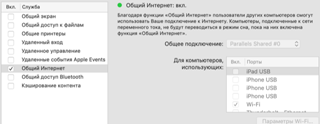
4. Go to the Parallels network settings and choose the source «bridge100»:
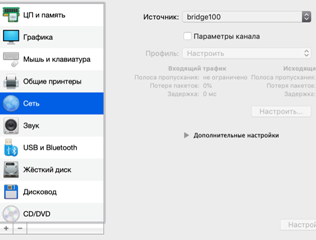
5. Connect your iPhone to the created WiFi network.
6. Run the app on iPhone and sync.
Top
9. How do I transfer Skylog to a new computer?
1. Install Skylog Pro or Skylog
Standard on your new computer. Download (not Run) the latest (August 2020)
installation file Install617_P.EXE (Pro) or Install610_S.EXE
(Standard) as appropriate from the Skylog website using:
https://www.skylogservices.co.uk/PRO/Install617_P.EXE (Pro)
or,
https://www.skylogservices.co.uk/STANDARD/Install610_S.EXE (Standard)
to a suitable folder eg, c:\skylog, on your computer. To start the installation process,
double-click on the downloaded file in the download folder in Windows Explorer. You will need to re-enter
your Version 6 registration details during the installation process.
With the latest Microsoft security implementations in Windows, you will probably need to select ‘Keep Anyway’ from your Security program when downloading the above files as MS treats these files as suspicious because they are 'not commonly downloaded'.
2.Take a backup (ie, create file Backup.zip) from the Skylog installation on the old
computer to removable media (eg, a USB flashdrive). Connect the removable media to the new computer, and then
Restore this backup to the new Skylog installation on the new computer
using Main Menu->File->Restore. Restart Skylog and you're done.
Top
10. Why have I gained a
couple of flight records after upgrading to V6?
In V5 (and earlier versions), deleted
records are flagged as such and then removed automatically from the
database on shutdown or when the database is re-built. However, it has
been discovered recently that this functionality has not always been
100% reliable and one or two deleted records might remain in the
database - although not visible or included in any totals, reports or
printouts. The V6.04 (or earlier) database conversion program copied
these 'deleted' records to the new V6 database and, hence, they appear
in the V6 database undeleted. The V6 database is new and doesn't handle
deleted records in the same way as the V5 (and earlier versions)
database.
If you
have found this problem or have upgraded to V6 using the V6.17 (or
earlier) installation program and didn't check your record
totals/hours, you can identify any V5 'deleted' records by downloading
file ChkDeletedRecs.exe from here
to your Skylog program folder - usually c:\program files\skylog (Skylog
Standard) or c:\program files\skylgpro (Skylog Pro) - and running it
from there. This folder should still contain your V5 (or earlier)
database files eg, Logbook1.dbf etc.
This issue is resolved in the V6.05 (and later) database conversion
programs, and investigation reveals that it is unlikely to have
affected the majority of V6 upgraders. Nevertheless, if you are unsure,
please run ChkDeletedRecs.exe
Top
11. Upgrading your Operating System to Windows 7.
If you're upgrading from Windows Vista
to Windows 7 you can do what's called an in-place upgrade as long
you install the same version of Windows 7 as you have
of Vista. However, if you are upgrading from Windows XP (or earlier) or
from a different version of Vista, you will have to carry out a clean
install. That means you can't just turn XP or Vista into
Windows 7; you will have to export all your data, erase the hard drive,
and then reinstall all your applications and data.
Hence, if you have to carry out a clean
install of Windows 7 (or are upgrading from
the same version of Vista and you are using Skylog Version 5 or
earlier), it is absolutely essential that you take at
least 2 backups of your current data to separate
external storage devices as detailed in FAQ 2 in
order to avoid potential data loss. However, whatever Windows 7 upgrade scenario
you are faced with, we strongly recommend you
implement this backup strategy before proceeding with the upgrade,
If you have to carry out a clean
install, it is worth considering using Laplink's PCmover
program, see:
http://www.laplink.com/pcmover/pcmoverupgradeassistant.html
to assist with the upgrade process.
The program helps you upgrade quickly and easily from any version of
Windows (version 2000 or later) to Windows 7. Please note that only
Skylog Version 6 or later is fully compatible with Windows 7.
Please note also that Skylog is a
32-bit program and, hence, should be installed in the c:\Program Files
(x86)\Skylgpro folder if installing to the Program Files folder on a
Windows 7 64-bit operating system.
Top
12. Skylog Mobile Apps' Conduit configuration requirements
Note: To synchronise
your Apple or Android mobile device with your PC, your PC and mobile device must both be connected to
a WiFi network; synchonisation will not work over the
USB link - except in the case of Android apps with early versions of the Android OS. However, if you do not have a WiFi network, you can set up an
ad hoc network with your device provided your PC has a wireless network
adaptor. See for example:
https://windows.microsoft.com/en-US/windows-vista/Set-up-a-computer-to-computer-ad-hoc-network
1. Apple iTunes for Windows (which
includes Bonjour for Windows which is required by the Conduits) should
be installed on your PC. iTunes may be downloaded from:
https://www.apple.com/itunes/download/
Alternatively, Bonjour for Windows itself may be installed. The appropriate 32-bit or 64-bit installation file may be downloaded from:
https://www.skylogservices.co.uk/PRO/Apple/Bonjour.msi
or
https://www.skylogservices.co.uk/PRO/Apple/Bonjour64.msi
After installing iTunes or Bonjour for Windows, please reboot your PC to complete the installation.
If Bonjour for Windows is not installed,
you will receive the following error messages when running the Conduit:
'This
app has failed to start because dnssd.dll was not found'
'Could not find
iPhone conduit's iphoneserv.dll file'
2. Download and install the latest
Skylog Apple Conduit from the Mobile
Downloads page to your Skylog Pro program folder.
3. If you receive the following error message on your iPhone/iPad when trying to sync to your PC or Apple Mac using a Parallels Virtual Machine (vm):
'Sync Failed
No connection established with your PC. Please ensure that the iPhone_conduit.exe file is included in your PC's windows and/or 3rd party firewall exception list and try again.'
It indicates that the incoming connection from the mobile app is being blocked by a Firewall or there is an incorrect Parallels setting in the case of a Mac. To fix this, take the following action as appropriate:
3.1 If Skylog Pro is being run from Windows in an Apple Mac Parallels vm, check that the Parallels’ Devices>Network Adaptor 1 pane’s ‘Network Adaptor 1’ setting is: bridged (airport). In addition, if using Parallels Desktop 5 or later, check that the 'Send the Host's MAC address to DCHP Server' tick box is checked if the caveat shown under the tick box applies. See:
https://download.parallels.com/desktop/v4/docs/en/Parallels_Desktop_Users_Guide/22249.htm
3.2 See FAQ 21 for the Anti-Virus Firewall requirements for syncing Skylog with Mobile Devices using Wi-Fi.
4. See FAQ 17 for the initial App - PC syncing process.
Top
13. I cannot sync my mobile device with my PC.
Note: Do not uninstall and reinstall the app as you may delete all new records on your mobile device.
Particular issues and their possible solutions:
1. In some cases after initial installation in accordance with FAQs 12 (Apple app) or 18 (Android app using Wi-Fi syncing), the Conduit button (with your registered name) is NOT displayed on the mobile device's Skylog Conduits screen after starting the Conduit on your PC. You may also see one of the following groups of error messages on your PC:
'This app has failed to start because dnssd.dll was not found'
'Could not find iPhone conduit's iphoneserv.dll file'
' Unable to load iphoneserv.DLL '

followed by:
'access violation at address 000000000. Read of address 00000000'
or:
'A socket on your PC cannot be opened. Error code 5'
'Access violation at address...'
In these cases, downloading and re-installing the appropriate version of Bonjour for Windows from:
https://www.skylogservices.co.uk/PRO/Apple/Bonjour.msi
or
https://www.skylogservices.co.uk/PRO/Apple/Bonjour64.msi
fixes the issue. After installing Bonjour for Windows, please restart your PC to complete the installation. Please note that you may need to uninstall Bonjour before re-installing it. To uninstall Bonjour, right-click 'Control Panel>Program and Features>Uninstall or change a program>Bonjour' and select 'Uninstall'. Alternatively, you can repair Bonjour by repairing Apple iTunes: right-click 'Control Panel>Program and Features>Uninstall or change a program>Bonjour' and select 'Repair'.
2. After a period of successful syncs, the first thing to try is to restart both your Wi-Fi Router and your PC. If that doesn't work, try one of the following actions depending on whether the Conduit button (with your registered name) is or is not displayed on the Skylog Conduits screen when attempting to carry out a sync:
3. After a period of successful syncs, when starting the Conduit on your PC, the Conduit button (with your registered name) is NOT displayed on the Skylog Conduits screen when attempting to carry out a sync and, after a short period, the following (abbreviated) Conduit error message is displayed on the PC:
'Could not find a Conduit to sync with...'
In this case, there are two possible causes:
3.1 Although the Wi-Fi symbol is shown at the top of the screen, the IP Address in Settings>Wi-Fi Networks>IP Address>DHCP is incorrect and the Router and DNS addresses are missing. Hence, the Apple device is not actually connected to the Wi-Fi network, although it appears to be. Turning the Apple device's Wi-Fi OFF and ON again in Settings>Wi-Fi Networks then connects the device to the Network and syncing then works as normal. Please see the following Apple Support web pages for further information on resolving Wi-Fi issues of this nature:
https://support.apple.com/kb/TS1398?viewlocale=en_US
https://support.apple.com/kb/ts1559
3.2 Your Pc's firewall is blocking the connection TO your mobile device. Check FAQ 21 and see if your PC's firewall(s) is configured correctly. Note that it is possible that, even if you are using a 3rd party firewall eg, Norton Security, that a change to Windows 10 has modified the Windows Defender firewall. Hence, please also check the Windows Defender’s firewall to ensure file iPhone_Conduit.exe or Android_Conduit.exe as appropriate (located in your Skylog Pro Program folder: the default is c:\Program Files (x86)\Skylgpro; but your’s may differ) is included in the ‘Allowed apps and features’ list.
4. After a period of successful syncs, when starting the Conduit on your PC, the Conduit button (with your registered name) IS displayed on the mobile device's Skylog Conduits screen but syncing does not proceed and, after a short period, the following message (abbreviated here) is displayed on the mobile device:
"No connection established with your PC's Apple (or Android) Conduit using your Wi-Fi network. Please check ... have been met and try again. "
and a Conduit error message is also displayed on the PC.
In most cases, this is caused by the PC's Firewall blocking the connection FROM the mobile device to your PC. Check FAQ 21 as detailed in 3.2 above. You can check if, in fact, the problem is caused by a Firewall by disabling it temporarily and, after restarting the PC, trying syncing again.
4. If none of the above actions fix the problem, try the following:
4.1. Restart both your Wi-Fi Router and your PC again
4.2. Restart your mobile device and check its Wi-Fi settings are correct.
4.3 Contact Skylog Technical Support by email at: skylogdev@btconnect.com.
Top
14. How can I
improve my Skylog mobile app's Wi-Fi syncing reliability?
The mobile apps' Wi-Fi network uses the 2.4 Ghz frequency band in common with many other devices and networks such as neighbours' wireless networks, microwave ovens, baby monitors, DECT phones, bluetooth networks/devices etc. Hence, Wi-Fi performance may be significantly degraded by these networks/devices which, in turn, can have a significant impact on the reliability of Skylog's mobile app - PC sync network. If you suffer from a syncing success rate of less than 100%, please try one or more of the following measures which may improve the situation:
- If you have a bluetooth network, try switching it off temporarily before carrying out a sync. Bluetooth networks are the most likely cause of syncing unreliability.
- Try selecting a different channel on your wireless router. Make sure you re-connect your mobile device to your Wi-Fi network (on the Settings>Wi-Fi Networks screen) after doing this.
- Try syncing from different locations with respect to your wireless router.
- Try temporarily switching off any other devices which use the 2.4 Ghz frequency band.
- Try moving your mobile device closer to your Wi-Fi router when syncing.
Top
15.
What is the current status of Skylog's mobile applications?
(July 2012)
1. Palm Devices
The current Palm apps are no longer supported
as they are now obsolescent since they will
only work with devices using Palm OS 3.5 or earlier; they will not work
with newer devices - using HP's webOS which
is Palm's proprietary mobile operating system running on the Linux
kernel - as this is completely different
technology to earlier versions of the Palm OS. There are no
plans at this time to port the Skylog apps to this new OS unless its
sharp decline in market share (approx 6% at January 2010) over the last
few years is reversed.
2. Windows Mobile Devices
The current Windows Mobile apps are no longer
supported as they are now obsolete since they will only work with
Windows Mobile 6.5 devices or earlier; they will not work with current Windows Phone 7 devices as they use completely different
technology to earlier versions. There are no plans at
this time to port the Skylog apps to this new OS unless its recent
sharp decline in market share (approx 16% at January 2010) is reversed.
3. Apple Devices
Currently, the market leader (excluding
RIM) with their iPhone, iPod and iPad devices, and very popular with
professional pilots. Hence, most of our development has focused on this
platform over the last couple of years. Version 2 of our Skylog Pro app
was released in September 2010 with Version 3 (providing Sim
session recording) released in November 2010. At this time, we do not
intend to develop a Skylog Standard version.
4. Android Devices
Devices using the Android OS are rapidly
increasing their market share, with significant interest noted from
professional pilots. Hence, producing an Android app for Skylog Pro has
been a high priority in our development plans. Development of the app
is now completed and the app was released to the Android Market on 17
October 2011.
5. Blackberry Devices
We have noted very
little interest in these devices from professional pilots. Hence, we have no plans at
this time to produce a Blackberry version of Skylog Pro. However, Blackberry have introduced Android versions recently which will run many Android apps. Unfortunately, Network Service Discovery (which uses Apple’s Bonjour and is required for syncing by our app) is not currently available in Blackberry OS 10 and, therefore, our Android app will not work with current Blackberry Android devices.
Top
16. Skylog
Android App Compatibility and USB cable Syncing requirements
Please note that this method of synchronisation has been deprecated in favour of the Wi-Fi method - see FAQ 18.
The basic requirements for using the Skylog Pro Android
app are:
1. An Android
V2.2 or later device. The app may work on earlier versions, but that is
not guaranteed.
2. Skylog Pro V6.13
(Build 6.1.3.0) or later. See: 'Main Menu>Help>Check for
Updates...'.
3. ADB USB
drivers must be installed on your PC. Check for this in
Start>Control Panel>Device Manager and look for an entry similar
to: 'ADB Interface'. If an entry isn't there, please go to your device
manufacturer's website and look for a link to USB drivers. For example:
Samsung Nexus:
http://nexusshacks.com/nexus-s-hacks/how-to-install-nexus-s-windows-usb-drivers/
and
http://androiddrivers.net/samsung-android-drivers/download-nexus-s-drivers/
ZTE San Francisco:
http://sanfranciscoandroid.co.uk/android/how-to-install-the-usb-drivers-for-the-orange-san-francisco-zte-blade/
Motorola Xoom:
http://www.motorola.com/Support/US-EN/Support-Homepage/Software_and_Drivers/USB-and-PC-Charging-Drivers
For Links to other OEM
USB drivers, please see:
http://developer.android.com/sdk/oem-usb.html
4. A USB
connection between the Android device and your Windows PC.
5. USB debugging must be set on your device:
- Settings>Applications>Development>USB debugging, or
- Settings>Developer Options>USB Debugging (certain devices using Android 4.0.3), or
- See YouTube video: http://www.youtube.com/watch?v=fbystsylErw for Nexus 7 tablets running 4.2.
You should see a small triangular icon with an
exclamation mark at the top of the screen.
6. The Skylog
Android Conduit (InstAndroid113_P.EXE
or later) must be installed on your PC. This is a free application
which may be downloaded from:
https://www.skylogservices.co.uk/PRO/InstAndroid115_P.EXE
7. The Skylog Pro Android application
must be purchased from the Google Play at:
https://play.google.com/store/apps/details?id=Skylog.SkylogPro&hl=en_GB
8. See FAQ 17 for the initial App - PC syncing process.
Important. It is essential that the Skylog Pro app is automatically updated whenever an update is available. The procedure to enable automatic updating of the app is as follows:
•Go to the Android Market and then select the Downloads options.
•Click on the Skylog Pro app located in the download history.
•check mark the box which says ‘Allow Automatic Updating’.
•Tick it and the Skylog Pro app will be automatic updated whenever a new update is available.
Warning1: Samsung shipped
a broken kernel with Android 2.1, which is not able to support JIT
compilation. If you possess a Galaxy-class device with Android 2.1, you
will get unexpected results, this is caused by a kernel bug that breaks
cache coherency, rendering any engine doing JIT compilation useless.
Check with your manufacturer/carrier for an Android 2.2 or later update. The LG GT-540 also appears to have the same problem.
Warning2: Due to the enhanced security features incorporated in recent Samsung devices eg, the Galaxy S4 and S5, it is likely that ADB syncing will not work unless the KNOX security feature is turned off. It is recommended, therefore, that Wi-Fi syncing is used with these devices - see FAQ 18. Should you not have a Wi-Fi network, KNOX may be disabled as follows:
- Go to Settings>More>Application Manager.
- In Application Manager, slide the screen to the left until “ALL” is listed
- Scroll down to “Samsung KNOX” (note there is also a “KNOX Store”, but this is not what needs to be stopped)
- Select “Samsung KNOX” and then push “Force Stop”, then “OK”.
- Do the same for “Security Policy Updater”.
Top
17. How do I sync mobile app data with the main Skylog Pro database?
1. After installation of the mobile app (iPhone/iPad or Android) and the Skylog Conduit on the PC, carry out an initial sync to initialise the mobile app's Lookup and configuration data by starting the PC Skylog Apple or Android Conduit on your PC’s Desktop. If using an iPhone, iPad or Android (using Wi-Fi syncing) app, then select the Main Menu>Sync button on the mobile app and ‘touch’ the conduit button (with your Skylog registered name) on the Skylog Conduits page.
2. Enter Flight, Sim and Duty Hours data in the mobile app.
3. Carry out a 1st sync and then open Skylog Pro. If you have new mobile flight records, you should see the following message:
'There are records in your PC's iPad/iPhone/Android
Flight Records Database. Would you like to view them now?'
Note that this message only appears if you have new mobile flight records; new Sim and Duty Hours records are synced to the PC database automatically.
Follow the instructions to verify and copy the flight records to the main Skylog Pro database using the iPhone/Android Flight Record screen's Toolbar’s ‘Add iPhone/Android Records to Flight Records Database’ button.The sim and duty hours records will be transferred to the main Skylog Pro database automatically. The last 365 days sim records and last 28 days duty hours records will be transferred back to the mobile as read-only records; read-only records are indicated by a grey background in the iPhone/iPad app and by blue text in the Android app. There will be no flight records on the mobile at this stage.
4. Carry out a 2nd sync and the last 29 days flight records will be transferred to the mobile as read-only (greyed) records for the reports. To see the read-only records, make sure the mobile app's Main Menu>Prefs>‘Show PC Records’ is set to ‘ON’.
5. Thereafter, carry out steps 2 - 4.
If you have Wi-Fi syncing problems, see FAQs 12-14 above and FAQ 18.
The syncing process is described in more detail in the Skylog Pro Help should you need further info.
Top
18. Skylog Android App Compatibility and Wi-Fi Syncing requirements
Syncing between your PC and Android device may be carried out either by using your Wi-Fi network or by a usb cable connection. This FAQ describes the requirements should you choose the Wi-Fi network option (recommended); the requirements for the usb cable syncing option are described in FAQ 16.
The basic requirements for using the Skylog Pro Android app with Wi-Fi syncing are:
1. A local Wi-Fi network. However, if you do not have a WiFi network, you can set up an ad hoc network with your device provided your PC has a wireless network adaptor. See for example:
http://windows.microsoft.com/en-US/windows-vista/Set-up-a-computer-to-computer-ad-hoc-network
2. An Android V4.1 or later device; Wi-Fi syncing will not work on earlier versions. Please ensure Wi-Fi is switched 'ON'.
3. The Skylog Pro Android app V1.15 or later.
4. Skylog Pro V6.17 (Build 6.1.7.0) or later. See: 'Main Menu>Help>Check for Updates...' to check your version.
5. Skylog Pro's setting: 'Main Menu>File>Preferences>General>Select Android Syncing Method>Use a Wi-Fi Network' must be selected. This option will be set automatically if you select 'Use a Wi-Fi Network' in the 'Select Syncing Method' dialog when installing the Skylog Android Conduit V1.08 (or later) using InstAndroid115_P.EXE (or later) - see Item 7 below.
6. Apple iTunes for Windows (which includes Bonjour for Windows which is required by the Conduit) should be installed on your PC. iTunes may be downloaded from:
https://www.apple.com/itunes/download
Alternatively, Bonjour for Windows itself may be installed. The appropriate 32-bit or 64-bit installation file may be downloaded from:
https://www.skylogservices.co.uk/PRO/Apple/Bonjour.msi
or
https://www.skylogservices.co.uk/PRO/Apple/Bonjour64.msi
After installing iTunes or Bonjour for Windows, please reboot your PC to complete the installation.
Note: If Bonjour for Windows is not installed, you will receive the following error messages when running the Conduit:
'This app has failed to start because dnssd.dll was not found'
'Could not find the Android Conduit's iphoneserv.dll file'
7. The Skylog Android Conduit V1.08 or later must be installed on your PC. This is a free application which may be downloaded and installed using:
https://www.skylogservices.co.uk/PRO/InstAndroid115_P.EXE
8. See FAQ 21 for the Anti-Virus Firewall requirements for syncing Skylog with Mobile Devices using Wi-Fi.
9. The Skylog Pro Android application must be purchased (or updated if required for existing users) from Google Play at:
https://play.google.com/store/apps/details?id=Skylog.SkylogPro&hl=en_GB
10. See FAQ 17 for the initial App - PC syncing process.
Important. It is essential that you update your Skylog Pro app whenever an update is available. The procedure to enable automatic updating of the app is described at:
https://support.google.com/googleplay/answer/113412?hl=en
See FAQs 13 & 14 should you have Wi-Fi syncing problems.
Top
19. How can I keep my Skylog Airport Records database up-to-date?
The change history for the Skylog Airports database may be viewed at:
https://www.skylogservices.co.uk/Skylog_Database/History_Airports.txt
To update your Skylog Airports database to the latest version, download file Logbook8.zip from:
https://www.skylogservices.co.uk/Skylog_Database/Logbook8.zip
and unzip file Logbook8.nx1 to your Skylog database folder - overwriting the file of the same name therein. See Main Menu>Help>About for the location of your database folder. Please note the following points:
- This is only applicable to Skylog and Skylog Pro Version 6 or later.
- Any additions/amendments you may have made to your airports database will be lost.
- Ensure Skylog is closed before carrying out this process.
Latest update: 29/01/2021.
Top
20. Why doesn't ADB syncing work with my Android 5 (or later) device?
Android 5 introduced security changes which prevent the Skylog Pro app's ADB syncing method from working. At this time, no fix for this has been found. Hence, only Wi-Fi Network syncing (see FAQ 18 above) can be used to sync data between your Android 5 device and your PC. ADB syncing may still be used for Android 4.4.4 (and earlier) devices.
Top
21. What are the Anti-Virus Firewall requirements for syncing Skylog with Mobile Devices using Wi-Fi?
The following Skylog/Apple files must be included in the Exception lists of PC Firewall programs for mobile syncing to work using Wi-Fi:
Bonjour Service - c:\Program Files\Bonjour\mDNSResponder.exe (all mobiles)
Android Conduit - c:\Program Files (x86)\Skylgpro\Android_Conduit.exe (Android Mobiles)
iPhone Conduit - c:\Program Files (x86)\Skylgpro\iPhone_Conduit.exe (Apple Mobiles)
These default program paths assume that your Skylog folder is: c:\Program Files (x86)\Skylgpro. To ascertain the actual folder name, right-click the Desktop's Skylog icon and select Properties>Shortcut; the folder path is shown in the 'Start in' box.
Note that it is possible that, even if you are using a 3rd party firewall eg, Norton Security, that a change to Windows 10 has modified the Windows Defender firewall. Hence, please also check the Windows 10 Defender’s firewall to ensure the above files (as appropriate) are included in the ‘Allowed apps and features’ list.
Instructions for including these files in the Exception lists of some of the main Internet Security programs are as follows:
1. AVD
In the AVD Exceptions dialog you can define exceptions, i.e. items that AVG Internet Security will ignore:
-
Open your AVG program.
-
From the Options menu select ‘Advanced’ settings.
-
In the left pane select 'Exceptions'.
-
In the right pane click 'Add exception'.
-
In the drop-down menu select the exception type.
-
Browse to the file that you want to exclude.
-
Click OK to save details of the exception.
-
Repeat for the other program detailed above.
-
Restart your PC.
See:
https://support.avg.com/SupportArticleView?l=en&urlName=How-to-exclude-file-folder-or-website-from-AVG-scanning
for a visual explanation of these instructions for the AVG AntiVirus or AVG Internet Security products.
2. McAfee
- Right-click the McAfee logo in the Windows Taskbar, then select Change Settings>Firewall. Open the McAfee Firewall Settings
- Select the 'Internet Connections for Programs' option.
- Choose the program (from the list below) you wish to allow access, then select 'Edit'. If the program is not listed, select the 'Add' button, then select 'Browse' to choose the application.
- In the 'Access' section, select 'Incoming and outgoing' to allow both incoming and outgoing traffic to the applications.
- For the drop-down menu 'Use designated ports' should be sufficient to work with most apps. Otherwise, you can select 'Open ports to Home and Work networks', or 'Open to all devices'.
- There is also a 'Net Guard' section. This setting can block some traffic on certain apps. If you have problems with the application after setting all the items above, you may want to set 'Net Guard' to 'Off'.
- Select 'Save'.
- Repeat for the other program detailed above.
- Restart your PC.
3. Norton Security
-
Open Internet Security and select 'Settings'.
-
Select 'Detailed Settings>Firewall' and then select 'Firewall>Program Control'.
-
Click the 'Add' button and select the first file in the above list from the File Browser.
-
Save the program.
-
Repeat for the other program detailed above.
-
Restart your PC.
4. Windows 10 Firewall
- In the Start menu click ‘Settings’, and then enter ‘Firewall’ in the ‘Find a Setting’ search box.
- Click ‘Allow an app through Windows Firewall’ in the search results. In the ‘Allow Apps to communicate through Windows Defender Firewall’ window, check that one or the other of the above programs is listed and its 'Private' checkbox is checked.
- If either of the above programs are not shown in the ‘Allowed Apps and Features’ window, click the ‘Change Settings’ button and then click the ‘Allow another app…’ button. Then click ‘Browse’ in the ‘Add an App’ window and select the missing program. Click the ‘Add’ button to add the program to the ‘Allowed Apps’ list.
- Click the Private and Public check box to narrow down whether you want just networks that are secure to allow this communication, or also public and non-secure networks to do so.
- Click OK and then click the ‘Close’ button to close the Windows Firewall window.
- Restart your PC.
Note: Do not make any changes to the existing exceptions.
22. Why am I taken to the login/register page of an unknown organisation when I use the www.skylog.co.uk link to access the Skylog website?
We have found out
recently that, due to an administrative error, the skylog.co.uk domain for our
website has been purchased by an unknown organisation. If you use the
www.skylog.co.uk link to access our website, you will now be taken to a
login/register page belonging to this unknown organisation. Hence, we recommend
that UNDER NO CIRCUMSTANCES should you use this url for attempting to access our
website in future; www.skylogservices.co.uk must be used from now on. Our
apologies for this change.
Top
23. Syncing Fails on Apple Mobile Devices Following Installation of IOS 14 and Later.
Apple introduced a new security measure in IOS 14 whereby the user is required to authenticate access to the Local Network (see Settings>Privacy & Security>Local Network) for apps requiring access to a Wi-Fi network - such as Skylog Pro - following installation of the app and the first attempt to connect to a Wi-Fi network. This change has required a change to the Skylog Pro app - which has been implemented in the V3.27 Build 40 update. Following installation of this update and clicking the 'Sync' button to initiate the First Sync, you will be presented with a dialog inviting you to Allow (or not) access to your Wi-Fi network. Click 'Allow' and the permission will be entered in the appropriate Settings; syncing will then proceed as normal. To view the permission, see Settings>Privacy & Security>Local Network and look for the 'Skylog Pro' entry.
Top
Return to home page
|